

Edit a sent WhatsApp message

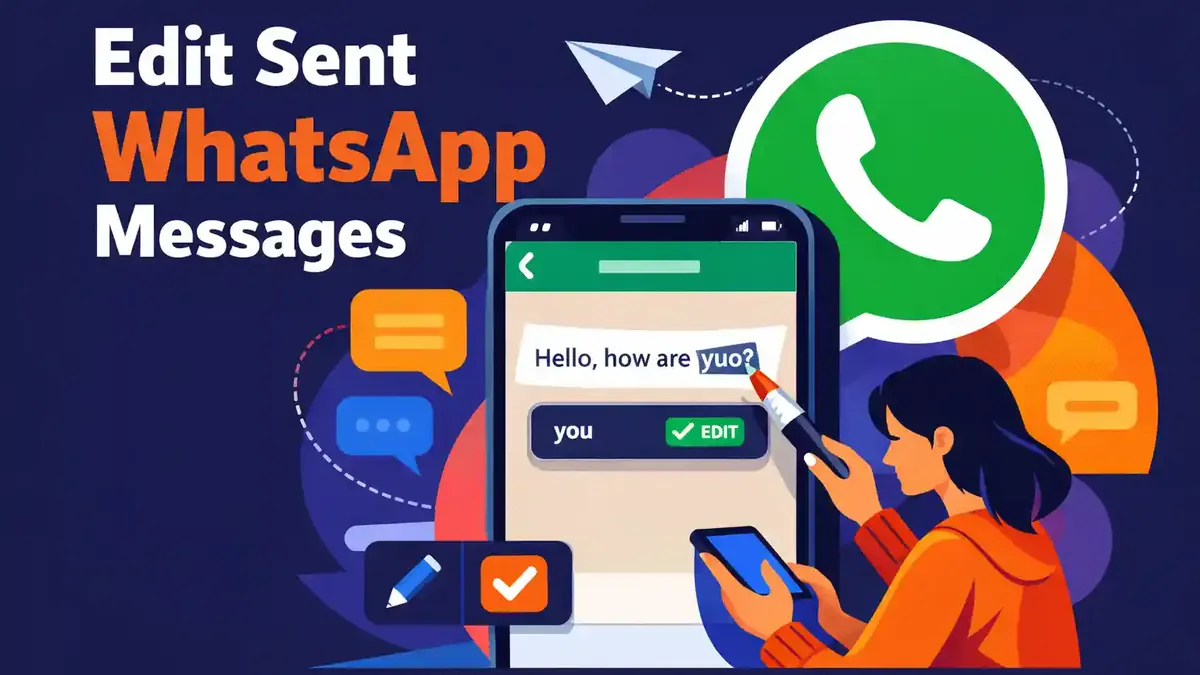
You can edit a sent WhatsApp message for up to 15 minutes after sending it. Press and hold your own message and choose Edit. Change the text and tap the check mark. The recipient will then see the Edited label, but cannot open a list of older versions inside WhatsApp.
This feature is useful for a typo, wrong time, wrong amount, or unclear sentence. You can only edit messages you sent yourself. After 15 minutes, the option disappears. Below, you will learn exactly how editing works on iPhone, Android, WhatsApp Web, and the desktop app.
- How can you edit a sent WhatsApp message?
- Does editing messages work the same on iPhone, Android, and desktop?
- Which messages can you edit and which cannot you edit?
- Which limitations or errors can you run into?
- What does the recipient see after you edit a message?
- Frequently asked questions about editing a sent WhatsApp message
How can you edit a sent WhatsApp message?
Open the chat with the message you want to change. Press and hold your own message and choose Edit from the menu. On some Android versions, you first need to tap the three dots after selecting the message. The text will then appear again in the input field.
Only change what is necessary. Then tap the check mark to save the new version. WhatsApp replaces the visible text and adds the word Edited to the message.
You have a maximum of 15 minutes from the original send time. So do not wait too long if you spot a mistake. The available time does not restart after your first change.
After saving, check whether the correct text is in the chat. Also check whether the Edited label is visible. That way, you know WhatsApp processed the change.
Where can you find the Edit feature in WhatsApp?
The Edit option is in the action menu of your own sent message. You will not find it in WhatsApp’s general settings. So you first need to open the correct chat and then select the exact message you want to change.
On iPhone, press and hold the message and tap Edit. If you do not see that option right away, check the other menu items.
On Android, press and hold the message as well. If needed, tap the three dots in the top right and choose Edit. The exact shape and position of the menu can differ by phone and Android version.
On WhatsApp Web and in the desktop app, move your mouse to the message. Open the menu next to the message and choose Edit. In some versions, you can also right-click your own recent message.
Do you not see the option anywhere? Then first check whether it is truly your own message and whether it was sent less than 15 minutes ago. After that, see whether a WhatsApp update is available.
Which steps should you follow to change a WhatsApp message correctly?
- Open the chat where you sent the message.
- Check whether less than 15 minutes have passed.
- Select exactly the message you want to change.
- Press and hold your own message or open the message menu.
- Choose Edit.
- Adjust the text carefully.
- Read the full new sentence one more time.
- Tap the check mark to save the change.
- Check whether the Edited label appears next to the message.
Do not change just one word if the rest of the sentence then becomes strange or unclear. Read the full message again. Is it about an appointment? Then check the date, day, time, and place together.
When dealing with amounts, pay attention to commas, dots, and currency as well. A small typo can make a big difference with money. So check not only the changed number, but the full amount.
Has the meaning of the message changed a lot? Then you may want to send a short new message as well. For example, say that the time, address, or amount has been updated. That makes an important change easier to notice.
Does editing messages work the same on iPhone, Android, and desktop?
The result is the same on every supported device. The original message is replaced by the new text and gets the Edited label. Only the way you open the menu differs by device.
| Device | Route in the app | Result | Common mistake |
|---|---|---|---|
| iPhone | Press and hold the message and choose Edit | The text is changed | You select a message you received |
| Android | Press and hold the message, open the menu, and choose Edit | The text is changed | You do not look for the three dots |
| WhatsApp Web | Open the menu next to your message and choose Edit | The text is changed | The web page has not refreshed yet |
| Desktop app | Open the message menu or right-click | The text is changed | You are using an old app version |
The 15-minute limit applies on every device. If you open the same chat on a linked computer, the original send time still counts. The timer does not restart when you switch from your phone to WhatsApp Web.
A change is synced between your linked devices. Give WhatsApp a moment if your connection is slow. Then check on your phone or computer whether the edited text is visible properly.
Which messages can you edit and which cannot you edit?
The feature is meant for messages you sent yourself. You cannot change someone else’s message. You can reply to that message and mention the correct information, but you cannot change the sender’s text.
For regular text messages, Edit works most clearly. For photos, documents, stickers, polls, videos, and voice messages, different options may apply. If you do not see Edit in the menu, the chosen message type may not support the change or the available time may be over.
A forwarded message that you sent yourself appears as your own message in the chat. However, the available edit options still depend on the type of content. So open the menu to check what is possible.
You can edit a message in a private chat and in a WhatsApp group. The conditions stay the same: you must have sent the message yourself and you must act within 15 minutes.
You cannot edit received messages, old messages outside the time limit, or unsupported content in the same way. In that case, send a new message with the correct information.
How does an edited message work in a WhatsApp group?
In a group, you follow the same steps as in a private chat. Press and hold your own recent message, choose Edit, and confirm the new text. All participants who can access the message then see the updated version with the Edited label.
A group chat can move fast. Someone may already have replied to the old text before you change it. That can make a reply look strange or illogical after the edit. So mention any important correction in a new message too.
Do not quietly change an appointment, task, or explanation if group members have already made a decision. Clearly explain what has changed. That way, the other participants can check their plan, answer, or choice again.
Admins do not get a separate list of earlier versions through the normal edit function. Regular participants do not see such a list either. The Edited label only shows that the text was changed after sending.
Do you manage a WhatsApp channel as well and want to reach a larger audience there? Then you can safely buy WhatsApp channel members at SocialKings. Also always check the text carefully before publishing anything in a channel.
Which limitations or errors can you run into?
The 15 minutes are over
After 15 minutes, Edit is no longer available. In that case, send a new correction message or delete the old message if that option is still available. Clearly explain which information is correct, so the recipient does not have to guess.
You did not send the message yourself
Only the sender can edit their own message. You can reply to a received message and mention the correct information. You cannot change the other person’s original text.
Your WhatsApp version is too old
Update WhatsApp through the official store on your phone or computer. Ask the recipient to do the same if the edited text is displayed strangely. Fully close WhatsApp after the update and restart the app.
The option is hidden behind an extra menu
On Android, Edit may be behind the three dots. On WhatsApp Web and desktop, the option is usually in the menu next to the message. First select exactly one of your own messages and then open the menu.
The internet connection drops
A change must be sent and synced. Check your internet connection if the new text does not appear. Do not close the app immediately after tapping the check mark. Wait until you see that the change has been processed.
The message type does not support the change
Not every type of content has the same editing options. If in doubt, send a new message with the correct information. Remove old content only when really necessary, and check which delete options WhatsApp shows.
The change does not appear on a linked device
Open the chat again and check whether the linked device has internet access. Refresh WhatsApp Web or restart the desktop app. The version on your phone and computer must be up to date for changes to sync properly.
What does the recipient see after you edit a message?
The recipient sees the new text and the Edited label. WhatsApp does not show a normal change history that lets someone open all earlier versions. So the old wording does not remain as a separate version under the message.
That does not mean the old text was never seen. The recipient may already have read the original message in the chat or in a notification. They may also have taken a screenshot. Editing does not remove a previously read sentence from someone’s memory or photo gallery.
WhatsApp messages and changes remain protected with the same end-to-end encryption between participants as regular messages. The Edited label does add clarity that the text was changed after sending.
So when it comes to sensitive information, never assume that editing completely undoes the first version. Do not share passwords, payment details, or verification codes in a message you may need to change later.
Does the recipient get a notification about the change?
The recipient will at least see the Edited label in the chat. Do not count on a clear new notification that explains every change in detail. If the correction is important, send a separate message that mentions the update.
You can usually fix a small spelling mistake without extra explanation. If the address, amount, time, or appointment changes, a new warning message is wiser. For example, write: Note: I have updated the time above to 3:00 PM.
Blue ticks only tell you something about read receipts. They do not confirm that someone has seen or understood the edited information. You may also want to read how to archive chats on WhatsApp and which exceptions apply there.
If an important change is involved, ask for a short confirmation. That is especially smart for appointments, payments, deadlines, and addresses. That way, you know the recipient is working with the correct information.
Can you undo an edit?
WhatsApp does not have a normal button that instantly restores the previous version. Within the remaining 15 minutes, you can edit the message again and put the desired text back. You must still remember the old wording yourself.
The timer keeps running from the original send time. If you edited a message after ten minutes, you do not get another full 15 minutes. In that example, about five minutes remain.
After the time limit expires, you can no longer change the text through Edit. In that case, send a new correction message. For sensitive or completely wrong content, check whether delete for everyone is still available.
In the guide on how to delete a WhatsApp message for everyone, you can read exactly what deleting does and which limitations you need to keep in mind.
What is the difference between editing and deleting?
Editing keeps the message in the same place in the conversation and replaces the text. The Edited label stays visible. This option is useful for a small mistake, missing word, or short clarification.
Delete for everyone tries to remove the original message from the participants’ chat. A note may remain saying that a message was deleted. Deleting makes more sense when the entire content was wrong, private, or sent in the wrong chat.
| Choice | What happens? | When is it useful? |
|---|---|---|
| Edit | The text is replaced and gets the Edited label | For a typo, wrong time, or short clarification |
| Delete | WhatsApp tries to remove the message from the chat | For private details, the wrong chat, or completely wrong content |
| Send a new message | The correction appears as a new and noticeable message | For important changes that no one should miss |
None of these features guarantees that nobody saw the old content. A notification, opened chat, or screenshot may already have made the first version visible. So always check the recipient carefully before sending sensitive information.
When is it better to send a new message?
Send a new message when the core of your message changes. Think of a new address, different amount, cancelled appointment, or changed deadline. A recipient can easily miss a quiet edit.
A new correction message is also better when others have already replied to the old text. Briefly refer to the earlier message and write out the correct information in full. Leave no doubt about which version is valid.
For a small spelling mistake or a missing word, Edit is usually enough. Use common sense. The larger the possible impact of the mistake, the more clearly you should announce the correction.
For an important appointment, for example, send: Correction to my previous message: we are meeting tomorrow at 2:30 PM at the main entrance. The correct information is then clearly in a new message.
How do you edit an important message without confusion?
Make a small correction as soon as possible. Keep the core of the message and change only what is wrong. Do not add a completely new topic to an old sentence, because replies to the first version can then become hard to understand.
- First check whether you selected the right message.
- Adjust the date, time, and time zone together.
- Double-check amounts, commas, and decimals.
- Mention a major change in a new message as well.
- Ask for confirmation when the change is important.
- Keep important appointments outside WhatsApp if needed.
- Do not remove context that would make earlier replies unclear.
In a busy group, someone may already have replied to the old text. Then briefly explain what you changed. That keeps other people’s replies logical and lets everyone know which information is current.
Do read receipts and privacy stay the same after an edit?
An edit does not change your general privacy settings. Read receipts, last seen, online status, and profile photo keep their existing settings. The message remains part of the same chat.
The Edited label is visible to participants who can see the message. Editing does not make a private chat public and does not add new participants.
Do you want to replace sensitive information? Keep in mind that the previous version may already have been read. Never share passwords, verification codes, PINs, or other secret details in a message that you hope to restore or delete later.
If there is a mistake in a group chat, also check who has access to the group. Even if you change the text quickly, several participants may already have seen the first version.
Which short checklist helps before you tap confirm?
- Are you still within the 15-minute limit?
- Have you selected your own correct message?
- Is the full new sentence correct?
- Are the name, date, time, place, and amount correct?
- Will earlier replies still make sense after the change?
- Do you need to report the important change separately?
- Is deleting safer than editing?
- Does the Edited label appear next to the message after confirming?
For important information, take a few extra seconds to check everything. A second correction is sometimes possible, but the original time limit keeps running.
Which two screenshots make Editing clear?
First use an annotated screenshot of your own sent message with the menu open. Highlight the Edit option there. Then use an image of the edited message and highlight the Edited label.
Make names, phone numbers, profile photos, and real message content unreadable. Preferably use a test chat with neutral sample text. That way, you explain the feature clearly without showing personal data.
On the first image, also show where the three-dot menu is if you use Android. On a WhatsApp Web image, you can highlight the small menu next to the message.
Frequently asked questions about editing a sent WhatsApp message
How long can you edit a WhatsApp message?
You can edit a sent message for up to 15 minutes after the original send time. After that, the option disappears and you need to send a new correction message or use another available feature.
Does editing WhatsApp messages work on iPhone and Android?
Yes. On both systems, press and hold your own recent message and choose Edit. On Android, the choice may be behind the menu with three dots.
Can you edit a WhatsApp message on a computer?
Yes, this works through WhatsApp Web and the desktop app when your version supports the feature. Open the menu next to your own recent message and choose Edit.
Can the recipient still see the old text?
WhatsApp does not show a normal change history. However, the recipient may already have read the first text in the chat or notification. A screenshot taken earlier may also still exist.
Why do I not see Edit in WhatsApp?
The 15 minutes may be over, you may have selected a received message, or the content type may not support the option. Also update WhatsApp to the latest official version and check the extra menu.
Can you delete an edited WhatsApp message?
Yes, after editing you can check the normal delete options. The available choice depends on the message, the time elapsed, and your app version.
Can someone see that you edited a message?
Yes. The new text has the Edited label next to it. That shows the recipient a change happened, but it does not give them a normal list of all earlier versions.
Does the time limit restart after an edit?
No. The 15 minutes start when you send the original message. A first edit does not give you a new 15-minute window.
Can you edit a received WhatsApp message?
No. You can only edit messages you sent yourself. You can, however, reply to the received message and provide the correct information there.
What first step can you take now on WhatsApp?
Open the right chat immediately if you just sent a mistake. Press and hold your own message, choose Edit, and check the full sentence before you tap the check mark. Do not wait until the 15 minutes are over.
Is it sensitive information or did you send something to the wrong chat? Then consider deleting instead of only editing. A screenshot may already have been taken, so share sensitive details as little as possible from now on. Also read what someone can and cannot see with a WhatsApp Status screenshot.
For an important change, always send an extra message with the correct information. That way, the chance is smaller that the recipient misses an updated time, amount, address, or other important correction.


