

Adjust your personal LinkedIn URL

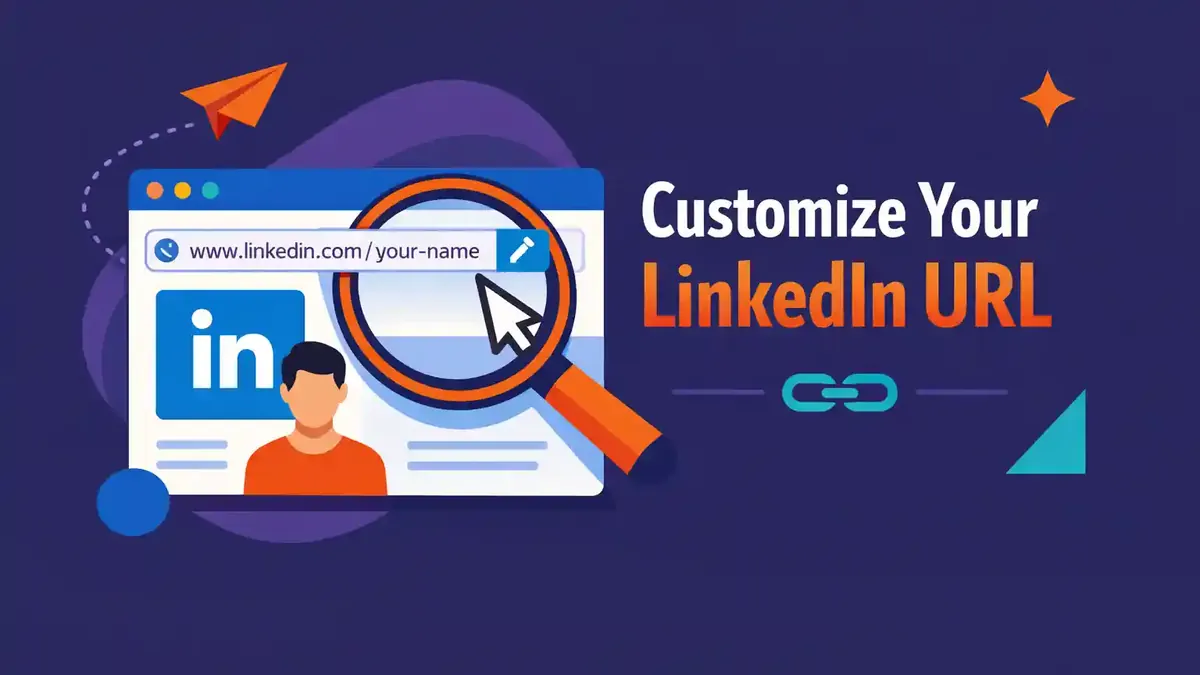
You can change your personal LinkedIn URL in your profile settings. Open your profile, go to Public profile & URL, click the pencil next to your current address, and change only the last part of the link. It is best to use your first and last name. That looks neat on your CV, in your email signature, and on your portfolio.
A custom URL does not automatically make your profile more popular. It is also not a smart trick to rank higher in LinkedIn or Google. The real benefit is clarity. An address like linkedin.com/in/firstnamelastname is easier to recognize, type, and share than an automatic address with lots of numbers.
In this guide, you will find the current steps for desktop, iPhone, and Android. You will also learn which characters are allowed, what happens to your old link, and how to fix common errors.
What is a personal LinkedIn URL?
Your public LinkedIn profile has its own web address. That address usually starts with www.linkedin.com/in/. The last part of the address refers to your personal profile.
When you create a new account, LinkedIn automatically generates an address. That address may include your name, followed by numbers or letters. You can change the editable part yourself. LinkedIn calls this your custom public profile URL.
This is different from the name at the top of your profile. If you change the URL, you do not automatically change your profile name, headline, work experience, or visibility. You only give the public web address a clearer and more personal ending.
A personal LinkedIn URL is useful on:
- your CV;
- your portfolio;
- a job application form;
- your email signature;
- an online profile page;
- a presentation;
- a business card;
- a personal website.
You can only have one custom public profile URL at a time. The name you want must also still be available. Every custom URL is unique.
Why should you change your LinkedIn URL?
The main reason is recognizability. A recruiter, client, or business contact who sees your link will understand faster that it really belongs to you. A short address is also less prone to mistakes when someone types it manually.
A neat URL can make your profile look more professional. The effect is small, but useful. Compare these two examples:
linkedin.com/in/samirajansen93b157284
linkedin.com/in/samirajansen
Both links can lead to exactly the same profile. The second link is simply easier to remember, calmer to read, and nicer to share.
A clear URL is especially helpful when you are actively applying for jobs or networking a lot. You can pronounce the address easily, add it to a CV, or send it in a message. The recipient immediately sees that it is a personal LinkedIn profile.
Do not expect a direct SEO miracle. A custom URL can help search engines understand that the address belongs to your name, but your full profile, public visibility, experience, and other online mentions matter much more. LinkedIn also warns that search engines may need weeks or even months to process profile changes.
Where do you find the setting on desktop?
The fastest route on a computer is:
- Log in to LinkedIn.
- Click Me at the top.
- Choose View Profile.
- Look on the right for Public profile & URL.
- Click the pencil next to this section.
- Look on the right for Edit your custom URL.
- Click the pencil next to your current URL.
- Change only the last part of the address.
- Click Save.
LinkedIn may show the buttons in another language if your account language is not English. In English, look for Public profile & URL and Edit your custom URL. The location of the settings stays roughly the same.
What do you see on the public profile page?
On this page, two types of settings are close together. At the top or on the right, you will see the field for your personal URL. Further down, you will find the settings for your profile’s public visibility.
Do not confuse these parts with each other. You do not need to make all profile details public just to change your URL. First, check which parts may be visible to people outside your network and to search engines. Then update your URL.
Where can you find your current URL without changing it?
On desktop, open your profile. On the right, you will normally see your public profile URL. The address usually starts with www.linkedin.com/in/. You can copy the full link there without changing anything.
You can also share your profile through a LinkedIn message. To do that, open Resources or the menu with extra profile actions. Then choose the option to send your profile in a message. The exact wording may differ by screen and account.
How do you change the URL step by step correctly?
The technical part usually takes only a minute. Choosing the right address deserves a little more attention. So pick a good name before you open the setting.
Step 1: choose a calm name
Preferably use your first and last name. Is that combination already taken? Then add a middle name, profession, field, or short location.
Good examples are:
- noahdeboer
- noahmdeboer
- noahdeboerdesign
- noahdeboerutrecht
Only use a profession if it is likely to stay relevant for a long time. An address like noahdeboerintern quickly feels outdated. A name without a temporary role is usually more useful for longer.
Step 2: check LinkedIn’s rules
According to LinkedIn, the custom part must be between 3 and 100 characters long. You may not use spaces, symbols, or special characters. The word LinkedIn also may not appear in your custom URL.
Capital letters do not matter. NoahDeBoer, noahdeboer, and noahdeBoer therefore all refer to the same address. Lowercase letters usually read most smoothly.
Prefer ordinary letters and optionally numbers. Accents and other special characters are not always accepted. Do you have a name with an accent? Use the simple spelling without the accent.
Step 3: fill in only the last part
Do not remove the entire web address. Edit only what comes after /in/. LinkedIn builds the rest of the URL for you.
Check the spelling before saving. Pay special attention to double letters, name particles, and reversed names. A typo in the URL is annoying when you have already placed the link on dozens of CVs, websites, or documents.
Step 4: save the new URL
Click Save. Then open your profile in a new private window. That way, you can check whether the link also works for someone who is not logged in to your LinkedIn account.
Can you only see part of your profile? That may be due to your public visibility settings. The URL can still work correctly while certain profile sections remain hidden.
Step 5: update all old mentions
Update the link on your CV, website, portfolio, online profiles, and in your email signature. Also think about documents you often use as templates. Check presentations, digital business cards, and QR codes as well.
LinkedIn usually keeps your previous custom URL linked to your profile for six months, unless you unlink it yourself. Still, it is wise to use the new link everywhere right away. That prevents different old addresses from continuing to circulate in the long term.
Which URL fits your situation best?
Choose the shortest address that clearly belongs to you. Do not use a complicated slogan when your name is enough. A recognizable name often remains useful for years.
| Situation | Helpful structure | Example | Better to avoid |
|---|---|---|---|
| Unique name | First and last name | lindavoskuil | Random numbers |
| Name is taken | Name and middle name | lindamvoskuil | A long string of characters |
| Freelancer | Name and stable field | lindavoskuilphotography | A temporary offer |
| Many namesakes | Name and location or expertise | lindavoskuilbreda | A birth year if it is not needed |
| International career | Name without Dutch explanation | lindavoskuil | Hard-to-read abbreviations |
You do not need punctuation marks. LinkedIn does not allow special characters in this field. Write the name as one word, or choose a simple combination that is still available.
Prefer not to use a birth year unless it is really necessary. You share personal information that way, and the address can look less professional. A middle name, location, or area of expertise is usually a better solution.
How does it work on iPhone and Android?
The route in the LinkedIn mobile app is almost the same on iPhone and Android:
- Open the LinkedIn app.
- Tap your profile photo.
- Tap your profile photo again or choose View Profile.
- In the intro section, tap More.
- Choose Contact info.
- Tap the pencil in the top right.
- Tap your profile URL.
- You will be taken to your public profile settings.
- Tap the pencil next to the custom URL.
- Change the last part and tap Save.
LinkedIn sometimes tests a different layout. Do you not see More? Then open your profile, look for Contact info, and tap the pencil there. In a mobile browser, the Contact section is often lower on your profile.
What is different between the app and desktop?
On desktop, Public profile & URL appears directly on the right side of your profile. In the app, the route usually goes through your contact info. The result is the same. The change belongs to your account and therefore appears on your other devices too.
| Device | Route | Result | Common issue |
|---|---|---|---|
| Desktop | Me, View Profile, Public profile & URL | You can edit the custom URL | The right panel is not visible because the window is too narrow |
| iPhone | Profile photo, Profile, More, Contact info, Edit | You reach the public profile settings | The app shows a slightly different button name |
| Android | Profile photo, Profile, More, Contact info, Edit | You reach the same setting | An outdated app does not load the page properly |
| Mobile browser | Profile, Contact, Edit, Profile URL | You edit the last part | The browser asks you to log in again |
What errors can you run into?
Most problems are caused by a taken name, invalid characters, or too many changes in a short period. In many cases, you can solve the issue yourself.
The URL you want is already taken
Custom URLs are assigned based on availability. LinkedIn cannot give you a taken address on request. Choose a logical variation with your middle name, field, or location.
A long random number sequence is best avoided. A single meaningful number may work, but is rarely needed. Try a recognizable combination of your name and expertise first.
LinkedIn does not accept the characters
Remove spaces, accents, punctuation marks, and other special characters. Use ordinary letters and numbers. Also check whether you accidentally added the word LinkedIn.
You cannot change the URL again
LinkedIn allows a maximum of five changes within six months. After the fifth change, you must wait before you can update the address again. So do not keep experimenting with tiny variations.
Your old URL still seems active
That can be correct. LinkedIn keeps a previous custom URL linked to you for six months unless you unlink it. That means an old link can still work temporarily, and someone else cannot claim it yet.
Want to see old URLs? On desktop, open Public profile & URL and choose the option to view previous custom URLs. You can unlink an old URL there. After unlinking, LinkedIn says it remains unavailable to others for seven more days.
Your profile does not appear in Google
A custom URL does not make a hidden profile public. Check through Settings & privacy, Visibility, and Edit your public profile which parts are visible.
Search engines do not process changes immediately. LinkedIn says this can take weeks or months. A missing or old search result therefore does not immediately mean your URL is set up incorrectly.
You do not see the setting at all
Check whether you are editing a personal profile and not a company page. A LinkedIn page has a different URL and different admin settings.
Update the app, try the desktop version, and check whether your public profile exists. A public profile URL may not appear if you do not have a public profile.
What changes after you adjust your URL?
Your new address points to the same account. Your connections, followers, messages, recommendations, skills, and publications stay in place. You do not need to invite anyone again, and your profile content does not change.
The change also does not automatically adjust your privacy. Someone who opens your new link only sees what your settings allow. Want to know what visitors can see and which visit information LinkedIn shows? Then also read can you see who views your LinkedIn profile?.
Your additional language profiles use the same public URL. LinkedIn may add a language code at the end. So you do not need to create a separate base address for every profile language.
Your country can affect the beginning of the public URL. LinkedIn gives as an example that a country code can appear before linkedin.com/in/. If you change your country in your profile, this part may change automatically. According to LinkedIn, old addresses will still work.
A personal URL belongs to your own profile. If you also want to expand your reach, focus on relevant content and real conversations. You can also see how buy LinkedIn connections fits into your growth plan. If you manage a business page, buy LinkedIn followers is a separate option. A company page and a personal profile each have their own URL and settings.
Which two screenshots make this step-by-step guide clearer?
Add two up-to-date screenshots when you publish. Hide names, notifications, and other personal details before uploading the images.
Screenshot 1: the route on desktop
Show the top part of a LinkedIn profile. Mark Public profile & URL on the right with a frame and an arrow. Add a short text: “Click here to open your public URL.”
Crop out notifications, other people’s profile photos, and private messages. The goal of the image is only to show the correct entry point.
Screenshot 2: the custom URL field
Show the public profile settings page. Mark the pencil next to the URL and the text field where only the last part is changed. Use a made-up example name.
Add below the image: “Edit only the part after linkedin.com/in/.” That prevents people from trying to paste the full address into the field.
Which checklist do you use before sharing the link?
- Use your first and last name if possible.
- Check whether the spelling is correct.
- See whether the URL is short and easy to read.
- Avoid temporary roles and vague abbreviations.
- Test the link in a private window.
- Check that you only show profile details that may be public.
- Replace the link on your CV, portfolio, and website.
- Update your email signature.
- Create a new version of any old QR code.
- Do not change URLs more often than necessary.
- Test the final link on mobile too.
Frequently asked questions about your personal LinkedIn URL
Is a personal LinkedIn URL free?
Yes. LinkedIn describes this as a setting in your public profile. You do not need a Premium subscription to change the custom part of your URL.
How often can I change my LinkedIn URL?
You can change the custom public profile URL up to five times within six months. After that, you cannot update it again for a while. So choose a final name first and check the spelling carefully.
Can I restore my old LinkedIn URL?
LinkedIn says you can normally return to your previous URL right away. A previous custom URL also remains linked to you for six months unless you unlink it. If restoring it does not work, contact LinkedIn Support.
Why is my name not available?
Someone else may already be using that URL. Custom addresses are available on a first-come, first-served basis. Choose a recognizable variation with, for example, your middle name, location, or expertise. LinkedIn will not manually free up a taken URL for you.
Does a custom URL improve my visibility?
A clear name can give people and search engines extra context. Still, there is no guarantee of a higher ranking. A complete profile, relevant experience, public visibility, and trustworthy online mentions matter more.
Can someone see through the URL that I viewed the profile?
No. The URL itself does not show viewing history. LinkedIn has separate settings for profile views. For the different options, read the guide on can you see who views your LinkedIn profile?.
Do my connections disappear when I change the URL?
No. You only change the public web address. Your connections, followers, conversations, recommendations, and other profile details stay exactly as they are.
Should I replace my old LinkedIn link everywhere?
Yes, that is wise. The old URL may still work for a while, but the new link is clearer and more future-proof. At the very least, update your CV, website, portfolio, email signature, and fixed application documents.
What is now the best first step?
Open your own profile and copy your current URL first. Then think of one calm variation using your real name. Change the address only when you are sure about the spelling. Test the new link in a private window and then update your CV and other fixed mentions.
Are you improving your whole profile? Then do not change everything at once without a plan. First check your visibility, headline, and contact details. If you are open to a new job, you can then set a strong LinkedIn headline and understand LinkedIn following vs connecting to help shape your profile strategy. That keeps each change clear and easy to review.


