

What is TikTok Stitch?

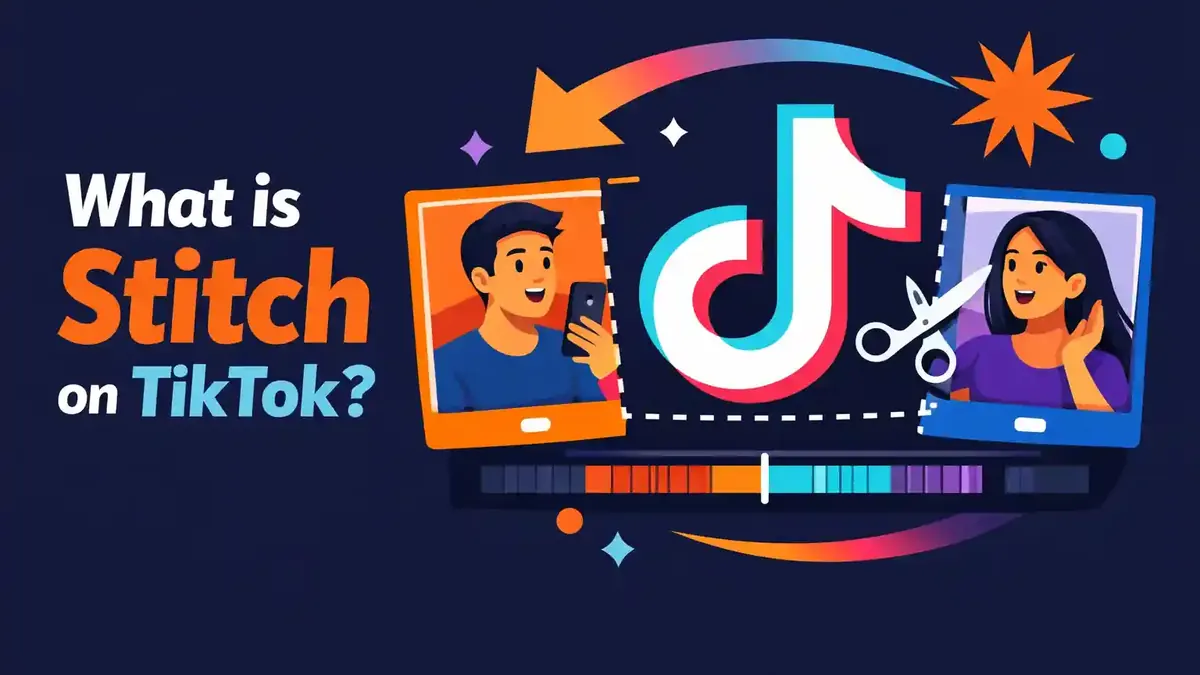
Stitch on TikTok is a feature that allows you to combine a short clip from someone else’s video with a new video of your own. First, the selected clip plays. Then your reaction, explanation, or addition follows. The original creator must have allowed Stitch.
What exactly does Stitch mean on TikTok?
The English word “stitch” literally means to fasten things together. On TikTok, you place a short section of an existing video before your own new recording.
For example, someone asks a question in a video. You select the clip where that question can be heard. Then you record your answer. Viewers see the question first, followed by your explanation.
TikTok treats the original video and your Stitch as two separate posts. Your Stitch appears on your profile. The original video remains on the original creator’s profile.
You cannot Stitch every video. The creator must have enabled the feature. Privacy, age, and the video’s individual settings also determine whether Stitch is available.
Is a Stitch a copy of the entire video?
No. You only select the part that TikTok makes available. You then add your own video. The goal is to respond, explain something, or build on the original context.
Do not download an entire video yourself and upload it again later. Use the official Stitch feature when the creator allows it. This keeps the source clear and lets you use the video as intended.
Where does a Stitch appear?
The new Stitch appears on the profile of the person who created it. The original video remains on the original creator’s profile.
The new creator’s privacy settings determine who can view the Stitch, reply to it, or interact with it. Those settings do not have to match the original video’s settings.
How do you create a Stitch on TikTok?
You create a Stitch through a video’s share menu. Follow these steps:
- Open the TikTok video you want to use.
- Tap Share on the side.
- Tap Stitch.
- Select the clip you want to use.
- Tap Next.
- Choose the maximum length of your own video.
- Tap Record and create your part.
- Tap Continue.
- Add text, filters, voice, stickers, or effects if they help.
- Tap Next to set the caption, hashtags, tags, location, link, and privacy.
- Tap Post or save the video as a draft.
TikTok may change the names and locations of buttons. The main steps remain the same: open Share, select Stitch, choose a clip, record your part, and publish the video.
Image tip 1: Show a screenshot of the share menu with clear markings. Highlight the Stitch button and show where it appears among the other sharing options.
Image tip 2: Show the screen where you select the clip. Mark the starting position, ending position, and Next button.
How do you select a good clip?
Select only the part needed to understand your reaction. A short question or clear statement often works better than a long clip with no clear focus.
Always watch the complete original video first. This helps you avoid taking words out of context. A short sentence can mean something different when the rest of the video is missing.
Your own part should then add something meaningful. Provide an answer, check a claim, share an example, or present a different perspective. Do not simply repeat what the creator has already said.
Can you save a Stitch as a draft?
Yes. TikTok displays Drafts as an option on the publishing screen. A draft is visible only to you on your profile until you publish it.
Be careful: drafts may be stored locally on your device. Do not delete TikTok without a reason, and do not switch devices without preparing first. If you are unsure, read why TikTok videos can become stuck while processing.
Why can’t you see the Stitch button?
Stitch is not enabled for every TikTok video. The creator can disable the feature for the entire account or only for that particular video.
Other possible reasons include:
- the creator has a private account;
- your age settings do not permit Stitch;
- the particular video may not be reused;
- you are using an outdated version of the app;
- TikTok is testing a different menu layout;
- the app is experiencing a temporary error.
An account must be public before others can receive permission to Stitch its videos. Reuse options are therefore more limited with a private account.
Can you enable Stitch for someone else’s video?
No. Only the original creator controls permission for their own video. Never ask for login details or try to bypass the setting.
You can politely ask the creator whether Stitch was disabled intentionally. The creator is not required to enable the feature for you.
Does clearing the cache help when the button is missing?
Clearing the cache can help if TikTok displays an old or frozen menu. It does not change the original creator’s privacy setting.
Update the app first. Then test another public video that you know allows Stitch. After that, read what clearing the TikTok cache actually does before using storage options.
Who can Stitch your TikTok videos?
TikTok allows creators to choose who may use their content. With a public account, you can usually choose between:
- Everyone, if you want all TikTok users to be able to Stitch your videos;
- Friends, meaning followers whom you also follow.
You can also disable Stitch for an individual video. TikTok may group these options under content reuse. The exact names may vary depending on the app version.
How do you change the general Stitch setting?
Follow this path:
- Tap Profile at the bottom.
- Open the menu.
- Select Settings and privacy.
- Tap Privacy.
- Find Content reuse or Stitch.
- Choose who can use your content.
Check each individual video as well. An individual video’s setting can be more restrictive than your account’s general setting.
How do you disable Stitch for one video?
Open your own video. Tap the three dots or More options. Select Privacy settings and disable content reuse or Stitch.
For a new video, you can review this selection on the final publishing screen. Check More options before tapping Post.
Do teenagers have the same options?
Not always. TikTok applies stricter privacy settings to users under 18. The available audience depends partly on age and the account’s privacy settings.
Use your actual date of birth. Do not try to bypass age restrictions with another account or a false date of birth.
Which terms are similar to Stitch?
| Term or signal | Meaning | How you use it in practice |
|---|---|---|
| Stitch | A clip from an existing video followed by your new video | Use this for a focused reaction or addition |
| Duet | The existing video and your video play in a combined layout | Use this for a simultaneous reaction or performance |
| Repost | You recommend the existing video without creating a new recording | Use this when you do not need to add anything substantive |
| Share | You send the video to a person, group, or another app | Use this to send a video directly to someone |
| Download | You save a video file if the creator permits it | Use this for viewing without an internet connection, not for unauthorized reposting |
| Quote or tag | You mention a creator or video within your own context | Use this when Stitch is unnecessary or unavailable |
The main choice is straightforward. Do you want to respond with a new section of video after a short clip? Choose Stitch. Do you want to appear on screen at the same time as the original video? Duet is usually the better option.
What is the difference between Stitch and Duet?
With Stitch, the selected clip plays first, and your recording begins afterward. With Duet, the original video and your video play simultaneously in a combined layout.
Stitch is useful for:
- answering a question;
- explaining a statement;
- correcting an error;
- finishing a story;
- adding a practical example.
Duet is useful for:
- reacting at the same time;
- singing or performing along;
- following a dance;
- showing a comparison of before and after;
- providing direct visual commentary.
Both features create a new post on your account. Both also require permission through the original creator’s settings.
Is Stitch better than Duet?
No. They are two different methods of reuse. Choose the feature that communicates your story most clearly.
A Stitch works well when you want to show an important clip first and then respond calmly. A Duet works better when viewers need to see both images simultaneously.
What does a Stitch say about your content?
When someone Stitched your video, that person found a section useful as the starting point for new content. This may mean you shared a good question, a striking claim, or a relatable situation.
For creators, this can be valuable feedback. Look at which clip was selected and the reactions that follow. Your topic may be raising questions you can answer in a subsequent video.
A Stitch can also create a broader conversation around your video. The new creator adds their own audience and context. This can help more people discover the original topic.
Does Stitch guarantee additional reach?
No. TikTok uses many different signals to determine recommendations. The quality of both videos, watch time, comments, the topic, and whether the content is suitable for the For You feed may all matter.
Do not enable Stitch only because you expect a guaranteed number of views. Use the feature when reuse suits your content and privacy preferences.
If you want to grow your account further, focus on the quality and consistency of your videos as well. Services such as buy TikTok followers or buy TikTok views do not change permission for Stitch. Good content and genuine interaction are still needed to keep viewers watching.
Do you receive the likes from someone else’s Stitch?
No. The new Stitch is a separate post on the profile of the person who created it. The likes and comments on that post belong to that account.
Your original video continues to exist separately. The link between the videos helps viewers identify the source, but the statistics are not combined.
What does a Stitch not mean?
A Stitch does not automatically mean that someone agrees with you. The new creator may support, add to, criticize, or make a joke about your message.
A Stitch also does not mean that the other creator may copy your entire video or use it everywhere outside TikTok. Permission to use a feature within TikTok is not automatically permission for every other use.
A Stitch also does not prove that someone examined your profile closely. The person may have found your video in a feed and immediately tapped Share.
Is every critical Stitch harassment?
No. A respectful and substantive response can simply be part of a normal conversation. A threat, targeted harassment, or privacy violation is different.
If you believe a Stitch violates the Community Guidelines or your privacy rights, use TikTok’s official reporting process. Do not share sensitive information about the creator yourself.
When is Stitch useful?
For regular users
Use Stitch to respond clearly to a single clip. Keep your reaction friendly and check the context. Do not shorten a sentence so much that its meaning changes.
A brief, clear response usually works better than a long and unfocused story. Explain immediately why you are using the clip and what you want to add.
For creators
For example, create a series of answers to relevant videos in your niche. Add genuine knowledge, experience, or a new example. A strong original contribution remains more important than the borrowed clip.
Schedule your post for a time when your audience is active. The best time to post a TikTok can help you plan, but good timing will not make a weak response strong.
If you are going live around the time you publish, you can discuss the Stitch topic further with viewers. Buying TikTok live viewers is a separate service and does not affect whether a video may be Stitched.
For businesses
A business can use Stitch to respond to a customer question, product use case, or industry claim. Always verify the source, facts, and rights. Make it clear when you are discussing your own product or a commercial partnership.
Keep sensitive customer information outside the frame. Ask for additional permission when the situation requires it, even if the Stitch button is technically available.
What mistakes do people often make with Stitch?
They select a clip that is too long or unclear
Start with exactly the section you need. Viewers should quickly understand what you are reacting to. Remove anything unnecessary for understanding your answer.
They add too little new value
A Stitch with no original value quickly feels repetitive. Provide an explanation, share your experience, present proof, or create an imaginative response.
They take words out of context
Watch the complete original video before selecting a clip. A short section can appear to mean something different without the rest of the video.
They forget their privacy settings
Check who can view your new Stitch and who may reuse your own videos. These are separate choices that you should review individually.
They think the original creator controls their post
Your Stitch appears on your profile and follows your privacy settings. The original creator can control reuse of their own content. Linked content may also be affected if the source disappears.
They use unreliable download apps
Use the integrated Stitch feature whenever possible. Never give your TikTok login details to external apps that promise additional features.
Can you delete or manage a Stitch?
You can delete your own Stitch just like a regular TikTok post. Open the video, tap More options, and select Delete. TikTok may temporarily retain deleted posts in the Recently deleted folder if that feature is available for your account.
The original creator can disable permission for future Stitches. TikTok also provides ways to manage Stitch videos linked to your own content.
Be careful with options that delete all linked posts. Such an action can have significant consequences for the original video and related Duets or Stitches.
Read every confirmation screen before deleting anything. Save a copy of your own original video first if you think you may need it later.
Frequently asked questions about Stitch on TikTok
What should I know first about Stitch?
Stitch uses a clip from an existing TikTok video as the beginning of your new video. The original creator must permit this feature.
Does Stitch work on iPhone and Android?
Yes. On both types of device, the process goes through Share and Stitch. Button placement may vary by device and app version.
Is Stitch available for every account?
No. Account privacy, age, region, app version, and the original video’s settings can limit the feature.
Which Stitch setting is most important?
Check who may reuse your videos and whether Stitch is enabled for the individual video. Your account must be public if you want to permit others to Stitch your videos.
Can I create a Stitch from a private video?
Normally, you cannot do so through the public Stitch feature. TikTok requires a public account before others can receive permission to use Stitch.
Can I use only the original audio?
Stitch is intended for a video clip followed by your own recording. The available audio and editing options depend on the video and the current TikTok editor.
Can the creator prevent me from posting a Stitch?
Yes. The creator can disable Stitch for the account or an individual video. You cannot change or bypass that decision yourself.
Will my Stitch remain available if the original video disappears?
Linked content can be affected if the source is removed or the creator changes reuse settings. TikTok may change the exact behaviour. Save a copy of your own recording if it is important to you.
Choosing Stitch in practice
Use Stitch when you want a short clip from an existing TikTok video to be followed by a new recording of yourself. This creates a separate post on your own profile.
The creator of the original video decides whether Stitch is permitted. A public account, age requirements, and reuse settings all have an important role.
Select a short, clear clip. Then add genuine value with an answer, example, explanation, or different perspective. Always check the complete context, privacy, and rights.
Choose Duet when both videos need to appear on screen at the same time. Use Repost when you only want to recommend an existing video and do not need to record anything new.


