

Tagging someone on Facebook

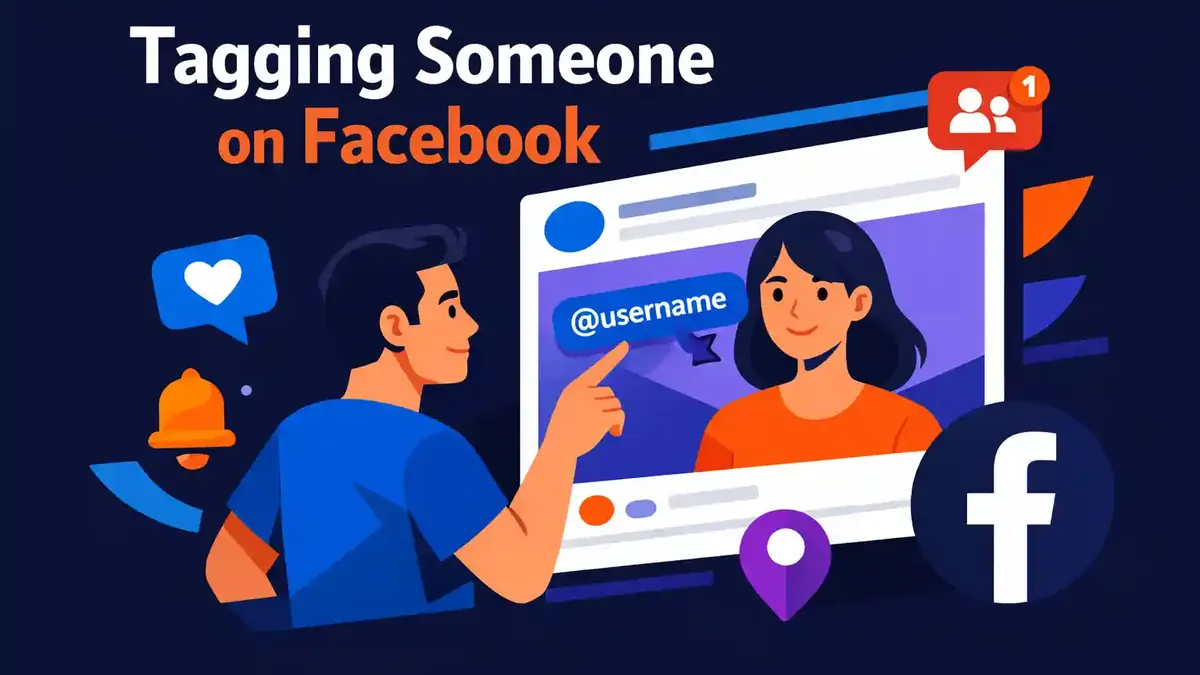
You tag someone on Facebook by typing the @ sign, followed immediately by the name of a person or page. Then choose the correct profile from the list. The name becomes clickable, and the tagged person may receive a notification. Depending on the privacy settings, the post may also appear on that person’s profile.
Tagging is useful when someone is in a photo, helped with an activity, or is directly related to the topic. Use a tag carefully. A tag can change the visibility of a post. Not everyone likes being mentioned publicly.
How do you tag someone quickly on Facebook?
The fastest way works in a new post, a comment, and often also in a photo caption:
- Open Facebook and start a post or comment.
- Type @ and then the name of the person or page.
- Tap or click the correct search result.
- Check whether the name has become clickable.
- Choose the right audience for your post.
- Publish the post or comment.
Sometimes Facebook recognizes a name even without the @ sign. Using @ makes the search function clearer. Do you see several people with the same name? Open the profile first if you are unsure. Check the profile photo, username, or mutual friends. That helps you avoid tagging the wrong person.
A tag is different from simply typing a name. Regular text does not link to a profile and usually does not trigger a notification. With a real tag, you can click the name to open the connected profile or page.
Where do you find the tagging feature in Facebook?
Where the tagging feature appears depends on what you want to tag. You can mention someone in a regular post, a comment, or a photo. You can also tag a Facebook page.
How do you tag someone in a regular post?
Open the box where you create a new Facebook post. Write your text and type @name. Then choose the right person from the results. When creating a post, you may also see the option to tag people. Facebook then shows a search field where you can select a name.
Always check the audience before publishing. Public, Friends, and Only me each have a different effect. With Friends as the audience, Facebook can sometimes also give the tagged person’s friends access. With Only me, the audience is not automatically expanded.
How do you tag someone in a comment?
Open the comments under a post. Type @ followed by the name and choose the correct profile. Then finish your comment and post it. This method is useful when you want to point someone to a specific question, photo, or update.
Do not tag many people at once just to get extra attention. That quickly feels like spam. It can cause irritation and actually reduce engagement. So only choose people who are truly connected to the comment or post.
How do you tag someone in a photo?
When adding a new photo, first attach the image to your post. Then choose Edit photo or Tag people. Tap the person in the photo, find the right name, and save the tag. After that, publish the photo with a suitable audience.
For an existing photo, first open the photo. Then look for the tag icon or the Tag photo option. Tap the right place in the image, choose the person, and confirm your choice. Check afterward whether the name is linked to the right person.
Facebook says there is a maximum of 50 people or pages per photo. That is only a technical limit. It is not advice to tag that many accounts. A small number of relevant tags is almost always clearer and more pleasant.
How do you tag a Facebook page?
Type @ followed by the page name. Choose the page with the correct profile photo and username. Some pages limit who may tag them. A page may also not show up if the name is spelled differently or if the page is hard to find.
Do you manage a page yourself? Then your options may depend on your Facebook access or task access. For certain tags made from a page, extra conditions apply. In some situations, for example, a person must like the page and be at least 18 years old.
How do you tag someone step by step without making a mistake?
Adding a tag only takes a few seconds. Still, things often go wrong when choosing the profile or audience. With the steps below, you reduce the chance of mistakes.
Step 1: decide why the tag is needed
First ask yourself whether the person truly belongs in the post. Is that person in the photo? Did the person help with the project? Or is the information directly meant for them? In those cases, tagging makes sense.
Do you only want to tag someone to get more reach? Then leave the tag out. Relevance matters more than the number of names in a post. An unnecessary tag can also feel pushy.
Step 2: find the right profile
Type @ and then the name. Do not automatically choose the first name in the list. Check the profile photo, mutual friends, and any username. For businesses, also check the exact page name and logo.
Unsure between several results? Open the profile in a separate window first. Then return to your post and select the correct person. This extra check takes little time and prevents an annoying mistake.
Step 3: check the audience
Tap or click the audience button under your name. Decide who may see the post. Keep the tagged person in mind as well. For example, a personal photo does not always need to be public.
Are you using Friends as the audience? Then the reach may be expanded to the tagged person’s friends. With a custom audience, you can sometimes turn that expansion off. The exact options can vary by account and post type.
Step 4: publish and check the tag
Publish the post and then tap the tagged name once. Does it open the right profile or page? Then the link was added correctly. Did you choose the wrong person? Edit the post right away and remove or replace the tag.
Step 5: respect a request to remove it
The tagged person can remove the tag themselves. That only removes the link to the profile. The original post is not deleted and may still be visible to the chosen audience. Only the creator of the post can delete the full publication.
Does someone ask you to remove a tag? Do it as soon as possible. That is especially important with personal photos, locations, or sensitive information. Respecting the other person’s wishes matters.
Which checklist can you use right away?
Use this short check before publishing a post with a tag:
- Does the person really belong in the content?
- Did you select the correct profile with @name?
- Has the name become clickable?
- Does the chosen audience fit the content?
- May the photo or information be shared publicly?
- Did you test the tag after publishing?
- Do you remove the tag quickly if someone asks?
These seven checks help prevent almost all common mistakes. They protect not only your own privacy, but also that of the person you tag.
Does tagging work the same on iPhone, Android, and desktop?
The basics are the same on every device. You type @name, choose a profile, and publish the post. But the location and names of the buttons can differ.
On iPhone and Android, you usually use the Facebook app. For photos, the tagging feature is often under Edit photo, behind a label icon, or in the three-dot menu. On desktop, you more often see the option to tag people directly when creating a post.
The exact name of a button may change after an update. So look for terms like Tag, Tag people, and Edit photo. Also watch for an icon that looks like a label.
Can’t find the feature in the app? Try the same post in a browser on a computer. That helps you find out whether the issue is temporary in the app or caused by an account restriction.
Why can’t you tag someone on Facebook?
You may sometimes be unable to tag someone because of a misspelling, privacy settings, a block, a technical problem, or a Facebook restriction. So the problem is not automatically on your account.
The name does not appear in the search list
Check the spelling and try the full name. Open the profile and see which name is actually used there. A nickname does not always work. For a page, the username may differ from the visible page name.
You can also try only the first name first and add the last name after that. Wait a moment for Facebook to load the search results. On a slow connection, the list may appear later.
Privacy settings limit the tag
Facebook lets users decide how tags are handled on their profile. A tag may first go through profile review. That means you can see the tag in your post, while it is not yet showing on the other person’s profile.
For photos of someone else, the option to tag may be missing because of the owner’s privacy settings. You cannot bypass this restriction. Ask the owner of the photo to add the tag themselves.
You are not friends
People who are not Facebook friends can sometimes still tag each other. In that case, the tag may be reviewed before it appears on a profile. Facebook may also show fewer search results. That is not proof that someone has blocked you.
The person has blocked you
If a profile is completely inaccessible, a block may be one possible cause. But there are other explanations too. The account may be deactivated or visibility may have been changed. So do not jump to conclusions too quickly.
The app is not responding properly
Update the Facebook app to the latest version. Close the app completely and open it again. Also check your internet connection. Then try a simple test post without a photo.
Does tagging work in the test post? Then the problem is probably with that specific post or photo. Still not working? Try Facebook in a browser or on another device.
You are trying to tag too many accounts
Facebook allows up to 50 tags on a photo. Too many tags can also come across as unwanted behavior. Only use relevant names and avoid sending a large number of notifications. That is better for your audience and lowers the risk of restrictions.
What changes after you tag someone?
After tagging, the name becomes a link to the profile or page. The tagged person may receive a notification. Whether the post also appears on that person’s profile depends on the settings and profile review.
A tag can also affect the audience. With some posts set to Friends, friends of the tagged person may also see the post. So do not only look at your own friends list when judging visibility.
The tagged person can remove the tag. That removes the link to the profile, but not the original post. The post may still be visible in the news feed, search, or on the creator’s profile for the chosen audience.
Does someone want the full photo or the whole post gone? Then that person must ask the publisher to remove the content. The publication can also be reported to Facebook if there is a valid reason.
You can turn on profile review for tags on your own profile. Go to Settings & privacy, choose Settings, and then open Profile and tagging. There you can set, among other things, that you want posts where you are tagged to be reviewed before they appear on your profile.
Where do you check old tags?
Open your Activity log if you want to see where you were tagged before. Look there for the sections for profile review, photo review, or tag review. The exact layout can vary by device and Facebook version.
From the Activity log, you can review a post, remove a tag, or go to the original post. Review old tags if your privacy preferences have changed. Pay special attention to public photos, old locations, and posts that no longer fit your work or private life.
Removing a tag only disconnects it from your profile. If you want the full content gone, contact the creator of the post or photo.
Are you getting too many tag notifications? Open Settings & privacy, go to Settings, choose Notifications, and then Tags. There you decide which tags Facebook alerts you about. Your notification choice does not automatically change who may tag you or who can view a post.
How do you tag people in a polite and effective way?
A good tag adds clear context. For example, write: “Thanks to @name for the photos.” The reader immediately understands why you mentioned someone. That makes the tag feel natural instead of like a quick attempt to get attention.
Ask permission for sensitive or personal images. This is especially important with children, locations, health, and private-life events. A public tag can reveal more information than you first think.
For a business, timing also matters. Do not post only because someone seems to be online right then. Check your own stats and test different fixed times. Our guide on the best time to post on Facebook helps you choose a good moment.
Never use tags as a replacement for good content. A post should be clear and useful even without the tagged names. Do you also want to grow the visibility of your profile? Then you can buy Facebook followers for your profile in a focused way. Always keep sharing valuable posts and use only relevant tags.
Do you manage an active community? Then, alongside good posts and conversations, you can also buy Facebook group members. Only tag existing members when a post is truly meant for them. That helps avoid unnecessary notifications and keeps the group pleasant to follow.
Are you organizing a broadcast on Facebook? Announce it in time and only tag guests or involved organizations. If you want to support the first reach of a broadcast, you can also buy Facebook livestream views. Good content and clear communication remain the most important things.
What questions are often asked about tagging on Facebook?
Does someone always get a notification about my tag?
Usually, the tagged person may receive a notification. This depends on their personal notification settings. So a missing notification does not mean the tag failed. Focus on whether the name is clickable and leads to the correct profile.
Can I tag someone without it appearing on their profile?
Yes. The tag can be in your post while the other person has profile review turned on. That person then decides whether the post also appears on their own profile. The chosen audience of your post still determines who can view the content.
Can someone see that I view their Facebook profile to tag them?
Facebook does not offer a normal list with the names of profile visitors. If you open a profile only to check whether you found the right person, that person does not automatically get a notification about your visit. Read more in can you see who views your Facebook profile?.
Can I remove a tag later?
Yes. Edit your own post and remove the linked name. If someone else tagged you, you can remove the tag through the options on the post. The original post stays up until the creator removes it.
Can I tag a business or a public figure?
You can tag a Facebook page if it can be found and allows tags. Type @ and then the exact page name. Select the correct page based on the profile photo and username. A personal profile may have different privacy restrictions.
Does a tag affect who sees my Facebook Story?
A Facebook Story has its own visibility settings. If you mention someone in a Story, check separately who may see the Story. If you want to know which viewers are visible to you, read hide your friends list on Facebook.
Can I tag several people at once?
Yes, you can tag multiple people or pages in one post. Only do this if all chosen accounts truly belong in the content. A large number of tags can feel like spam and create many unnecessary notifications.
Why is my tag not on the other person’s profile?
The other person may have profile review turned on. In that case, the post will only appear on their profile after the tag is approved. It is also possible that the person removed the tag or that privacy settings limit visibility.
What is the best first step if you want to tag someone now?
First make a test post with Friends as the audience. Type @name, select the correct profile, and check the audience before publishing. Then open the tag to see whether it leads to the right person or page.
Does that work well? Then use the same method in your real post, comment, or photo. Keep every tag relevant and check privacy before publishing. That way, you can clearly connect people to your content without unnecessary surprises or unwanted notifications.


